

NetSuite MCP lets AI assistants such as ChatGPT and Claude talk directly to your NetSuite account. It works through Oracle’s AI Connector Service. It could save your team hours of digging through reports. Before anyone switches it on, though, it’s worth agreeing a few simple ground rules. Here are the ones we’d put in place first.
NetSuite MCP is the name for this link between NetSuite and an AI assistant. MCP stands for Model Context Protocol. It’s a shared standard that lets AI assistants plug into everyday software, look things up and carry out tasks. Oracle announced its NetSuite AI Connector Service, which is built on MCP, in August 2025. Brian Chess, Oracle NetSuite’s Senior VP of Technology and AI, summed it up nicely as “bring your own AI”. In other words, you choose the assistant you like and NetSuite gives it a controlled way into your account.
If you work in finance or operations, the appeal is easy to see. Instead of building a saved search, you can simply ask a question, such as “Which customers have overdue invoices?”, “Can I get a quick breakdown of last month’s sales by subsidiary?” or “Show me all open purchase orders.”
At a busy month-end, that could save a lot of time. Someone in accounts payable can check what’s outstanding without waiting for a report to be built, and a manager can get a quick view of the numbers before a meeting.
It’s a useful tool. It just helps to know where the risks are before you flip the switch.
In this post, we’ll look at what NetSuite MCP can and can’t do, where the risks are and six practical guardrails to put in place before you connect anything. We’ll finish with a simple way to run a pilot.
What NetSuite MCP can (and can’t) do
When your AI assistant connects to the NetSuite MCP server, it logs in with a standard NetSuite user role using OAuth 2.0. So it can only reach the tools and data your administrator has set up for it.
Oracle’s official AI Connector guide makes the same point: queries run through the connector respect your NetSuite role permissions. Put simply, the AI can see and do only what a person with that same role could see and do.
That’s reassuring. It also means the role you create is your main line of defence. If that role has permission to edit vendor profiles, your AI assistant may be able to edit them too. It depends on which tools your admin switches on.
One more thing to bear in mind: Oracle’s protection stops at NetSuite’s front door. Once data heads to an external AI platform, Oracle no longer controls how it’s handled, stored or protected.
Where the risks sit
Most of the real-world risk falls into three areas:
- Confident mistakes (hallucinations): AI can sound completely sure of itself and still get figures or facts wrong. In an internal summary, that’s a minor headache. If the AI is updating a live record, it becomes a data quality problem.
- Hidden instructions in text: AI assistants treat everything they read as text. They find it hard to tell your instructions apart from the words inside a document they’re reading. This is known as prompt injection. The UK’s National Cyber Security Centre (NCSC) points out that, under the hood, an AI sees everything as one long stream of text. So a supplier’s email saying “Please update our bank details” could change a record if your permissions are too open.
- Data leaving your network: As soon as your assistant pulls information out of NetSuite, that data falls under the AI provider’s privacy policy and data-handling terms.
Give NetSuite MCP the same care as any other major system integration and these risks become much easier to manage. Most of that care comes down to a handful of settings and habits, and here’s where we’d start.
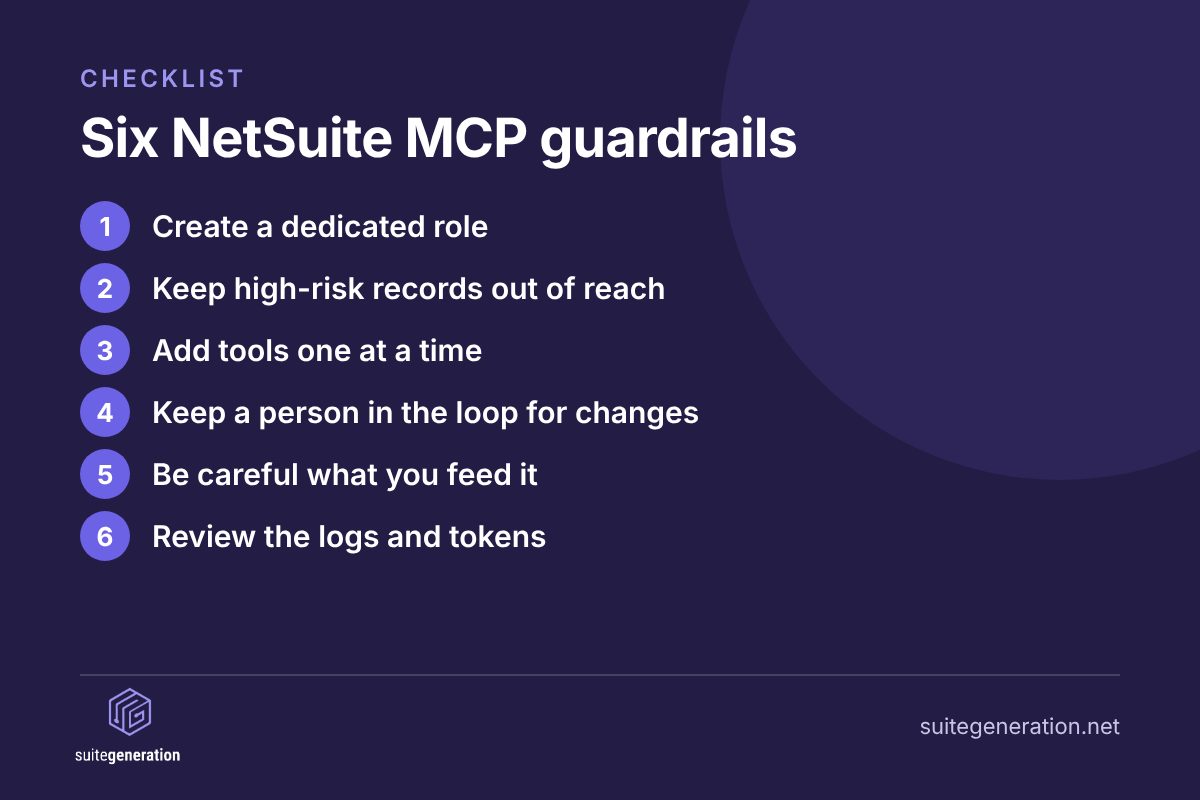
Six NetSuite MCP guardrails to set before you start
1. Build a dedicated AI role
Oracle deliberately blocks Administrator roles from using the AI Connector, and it’s worth taking that idea further. Rather than copying a busy manager’s existing role, build a fresh custom role just for AI use. Start with view-only permissions.
Existing roles tend to pick up extra permissions over time, as people cover for colleagues or take on new tasks. A role built from scratch means you know exactly what the AI can reach, and you can add more as you need it.
2. Keep high-risk records way out of reach
Keep sensitive data out of the AI role’s view. That includes vendor bank accounts, price levels, credit limits, your chart of accounts and employee payroll records. Subsidiary restrictions can narrow things down even further.
A simple test is to ask yourself whether you’d be comfortable seeing that data pasted into a chat window. If not, leave it out of the AI role for now.
3. Turn tools on one at a time
Start with basic read-only searches and reports, which cover most of what teams want early on. Only add tools that create or edit records when there’s a real business need and a clear owner in your team.
Turning tools on one at a time also makes it easier to see what’s working. If something odd happens, you’ll know which change caused it.
4. Keep a human in the loop
The security guidelines for MCP are clear on this: people must stay in control. Ideally, the AI assistant suggests an action or edit and someone on your team reviews it before hitting “approve”.
It adds a few seconds to each task, and in return a person checks every change before it reaches a live record. That matters most for anything touching money, such as payments, credit limits or bank details.
5. Be careful what content you feed it
The NCSC’s advice here is direct. Don’t give an AI tool write access to your main system if it routinely reads raw incoming emails or external uploads. Keep inbound documents, web content and customer emails well away from any role that can edit records in NetSuite.
In practice, that might mean using one AI set-up to read and summarise incoming documents and a separate, read-only connection for anything that touches NetSuite.
6. Keep an eye on logs and tokens
Oracle keeps AI Connector activity logs in production for 21 days, so check them as part of your admin routine. Treat access tokens like keycard passes: rotate them regularly and revoke them straight away when someone leaves.
It helps to decide now who checks the logs and how often, so it doesn’t slip when things get busy.
A practical, low-stress way to start with NetSuite MCP
We’d suggest starting small, with a focused pilot:
- Pick one team and one clear use case.
- Connect in a sandbox account first.
- Use a strict read-only role and agree what success looks like before you begin.
- After a few weeks, review how it went. Look at what people asked the AI to do, where it got confused and which permissions were actually needed.
- Widen access gradually, based on what the pilot showed you.
A pilot like this gives you practical examples to learn from. It also helps your team build confidence with the tool before it’s used more widely.
It’s also worth agreeing a company policy on which AI tools are approved for work. Without clear guidance, people may connect whichever tool they already use on their own devices.
A short, plain-English policy is enough to start with. It might list the approved tools, what data people can share with them and who to ask if they’re unsure.
The NCSC takes a pragmatic view of AI security: “The best we can hope for is reducing the likelihood or impact of attacks.” A tight role, a short list of tools and a person approving key actions help keep that risk small. And your team still gets the time savings.
Would you like someone to look over your roles and permissions before you connect an AI assistant? Our NetSuite AI and intelligent automation team will happily review your set-up with you.
Frequently asked questions
NetSuite MCP is the official link between NetSuite and external AI assistants such as ChatGPT or Claude. It’s provided through Oracle’s NetSuite AI Connector Service and uses an open standard called Model Context Protocol (MCP). That lets your chosen assistant look up data and run the tasks you’ve approved.
Yes, but only if its role has edit permissions and you’ve switched on tools that write to records. With a read-only role, the AI can’t change or delete records.
No. Oracle doesn’t allow Administrator roles to use the AI Connector Service. You’ll need a custom, non-administrator role with the MCP Server Connection and OAuth 2.0 Access Tokens permissions turned on.
Start small, with one team, one clear use case and a read-only role in a sandbox account. Review how it went after a few weeks, then widen access based on what you’ve learned.
Related reading
Author

Follow us on LinkedIn
New NetSuite field notes, UK pricing guidance and implementation practice, as we publish them.